January 2026

Thursday, January 22, 2026

Writing

Claude Code commands deprecated in favor of skills

Anthropic pushed out a change to the docs that deprecates commands, pointing everyone te use the new improved skills with support for most of the same feature set.

Read here: Claude Code commands deprecated in favor of skills

Today, I noticed I could no longer find the Slash commands documentation that I was using. The link is still named Slash commands, but it renders the Skills docs.

I had been looking closely at Claude Code’s Skills and Commands lately as I build skillet, and all today I kept trying to remind myself what was different between them. Sure enough, if you read the big blue box at the top of the docs, it says:

[!NOTE] For built-in commands like /help and /compact, see interactive mode.

Custom slash commands have been merged into skills. A file at .claude/commands/review.md and a skill at .claude/skills/review/SKILL.md both create /review and work the same way. Your existing .claude/commands/ files keep working. Skills add optional features: a directory for supporting files, frontmatter to control whether you or Claude invokes them, and the ability for Claude to load them automatically when relevant.

They merged some of the command-only features into skills. You can now use hooks in skills which were previously command only, and they added support for injecting command output into the prompt. Check out this example from the docs (note the ! preceding the inline commands).

---
name: pr-summary
description: Summarize changes in a pull request
context: fork
agent: Explore
allowed-tools: Bash(gh:*)
---

## Pull request context

- PR diff: !`gh pr diff`
- PR comments: !`gh pr view --comments`
- Changed files: !`gh pr diff --name-only`

## Your task

Summarize this pull request...!`gh pr diff`

The inline commands will be processed and interpolated before evaluating the skill.

One thing that is still missing is support for numbered arguments, like $1 and $2. These were complicated, and may have been under-utilized. I chose to skip it myself when I went to implement command support.

I’m excited to see this merger. It seemed inevitable and their timing, at least for me, is impeccable. Skillet will keep command support for now, as commands still exist, but I suggest migrating all your commands now to take advantage of the newly combined set of features.

Martin Emde

Tuesday, January 13, 2026

Writing

Fast claude @file suggestion in BIG repositories

Faster file suggestions in monorepos using Claude code @file suggestions based on git and an auto refreshing cache.

Read here: Fast claude @file suggestion in BIG repositories

At Gusto we have some big repositories. Many tools struggle with large codebases and Claude Code is no exception.

File suggestion, when you type @rea and it suggests @README.md, is one area where the number of files in a project has an outsize impact on a UI interaction. Filtering 110,000 files every time you type a character can make claude choppy and slow.

Anthropic has offered a worksround for this problem by providing the fileSuggestion setting to allow customization for big repositories.

The built-in file suggestion uses fast filesystem traversal, but large monorepos may benefit from project-specific indexing such as a pre-built file index or custom tooling.

I hacked my own solution for our giant repo with claude: file-suggestion.sh is a custom file-suggestion command which builds a cache from git ls-files, if available. It falls back to fd or find outside of a git repository. These results are filtered with ripgrep and fzf, allowing fast fuzzy searching.

As a surprise bonus, using a custom script seems to fix the choppiness and UI lag that plagues big repos. My guess is that the need to spawn a custom script forces the app to run the filtering async. In a repo like Gusto’s core product, this can lag input considerably to where your keypresses stop rendering. Deleting characters is even worse, slowing to a crawl as the search space expands.

Hey, claude code devs, if you’re reading:

Move the file suggestion filtering off the main
UI thread so suggestions are returned async,
following an approach similar to spawning a
process for a custom fileSuggestion command.

If you want to try my script, make sure you have ripgrep, fzf and optionally fd installed.

Grab the script below (or point your own claude at it and ask for a version that works for you). You can also view the latest version if I didn’t already break the link by the time you get here.

curl -o ~/.claude/file-suggestion.sh https://raw.githubusercontent.com/martinemde/dotfiles/36f670bda583065f634f1e83c4a195b9ac39c17b/home/dot_claude/executable_file-suggestion.sh
chmod +x ~/.claude/file-suggestion.sh

Then add the following to ~/.claude/settings.json (ensure the path matches and the file is executable).

  "fileSuggestion": {
    "type": "command",
    "command": "~/.claude/file-suggestion.sh"
  }

Restart Claude Code, then test out the search by typing an @ and the start of a file. Fuzzy matching should let you match any fuzzy path after the first slash.

On our biggest repo, this drops the search time to about 62ms compared to around 1000ms without the index (one full second per bounce). The script watches for the .git/index or .git/HEAD to be newer than the cache file and automatically refreshes the cache.

The cache is stored in the project’s .claude/ directory, so you’ll want to ignore the .claude/file-suggestions.cache in your global gitignore file.

In order to attain speed and retain fuzzy matching, it pre-filters based on the first directory segment using ripgrep to cut down on results. This allows you to type pac/payroll to find packs/products/payroll/... but if you type pks/payroll or papay it may not return any results. This is a trade-off for speed that I’d don’t love since I was expecting neovim level fuzzy find.

I may experiment with dropping the pre-filter and accepting the slower results just to get more reliable fuzziness. Please let me know if you find a better way around it.

Martin Emde

Saturday, January 10, 2026

Writing

Ghostty Focus and Blur Shaders

How to create dynamic focus and unfocus state shaders in Ghostty with the new iFocus and iTimeFocus uniforms available in Ghostty prerelease.

Read here: Ghostty Focus and Blur Shaders

What if you could have that sick Ghostty CRT effect but only on unfocused windows, or a rad flaming cursor highlight but only once when you focused the window?

Introducing the iFocus and iTimeFocus uniforms

My recent contribution to Ghostty enables new focus-based shaders. You can use these new input variables, iFocus and iTimeFocus, known as “uniforms” in Shadertoy GLSL, to allow shaders to react to focus and blur events.

Note: Until the next Ghostty release, you’ll need to install a recent Ghostty prerelease version to try this out.

Example: CRT Shader on Blur

Here’s the shader I use in Ghostty for unfocused surfaces.

Try clicking into and then outside of the “terminal” (yes it’s upside down). You should see a CRT-style effect that clears when you focus the terminal.

Loading shader...

Here I’m emulating Ghostty’s iFocus uniform to apply a CRT shader only when the canvas is unfocused. It may not render in every browser. Try it directly on my site with a modern browser or zoom in really close on your phone.

Example: Focus Animations

Here we emulate the iTimeFocus and iFocus uniforms to create a cursor highlight effect.

Click into the “terminal” and a cursor focus zoom effect triggers. Click around more, the effect only plays once. Defocus the “terminal” then focus it again and you’ll replay the focus animation.

Loading shader...

If you’d like to play with these shaders more, check out my Ghosty Shaders demo page.

Toggle between the shaders using the menu button in the top-left of the demo canvas, or look at the debug overlay (bottom right) for uniform details.

How it works: Focus/Blur Effects

The iFocus uniform is an int set to either 0 (blurred) or 1 (focused). This uniform is useful for controlling whether a shader renders on focused or blurred surfaces (panes or windows).

To save resources, Ghostty shaders do not run on every frame for unfocused surface. This is generally a good thing and saves resources, except sometimes unfocused surfaces receive frames anyway. This can cause stutters and skips in a paused animation or cursor effect on blurred surfaces.

With iFocus we can intentionally apply blurred styles to unfocused surfaces or run shaders only on focused frames. This fixes the stutters and skips by allowing the shader to ignoring these deceptive frames.

Example Usage

The following if statement can be added to any shader to make it render only when blurred. You can check if (iFocus == 1) to run something only when focused instead.

void mainImage(out vec4 fragColor, in vec2 fragCoord) {
    vec2 uv = fragCoord.xy / iResolution.xy;

    // Early exit when focused
    if (iFocus == 0) {
        // Render normal texture when
        fragColor = texture(iChannel0, uv);
        return;
    }

    // The rest of the shader goes here...
}

This example disables all shader effects when the surface is focused, allowing unfocused states such as CRT scanlines, vignettes, shadows, or faded colors that render only on the blurred surfaces.

On the other hand, if you invert the logic you can run something only when the surface is focused, which I have used to make my cursor effects only appear on focused surfaces.

Focus Resume Animations

The iTimeFocus uniform is a float, set to the iTime when the surface last received focus. We can use this to render effects that need to animate when the surface is focused.

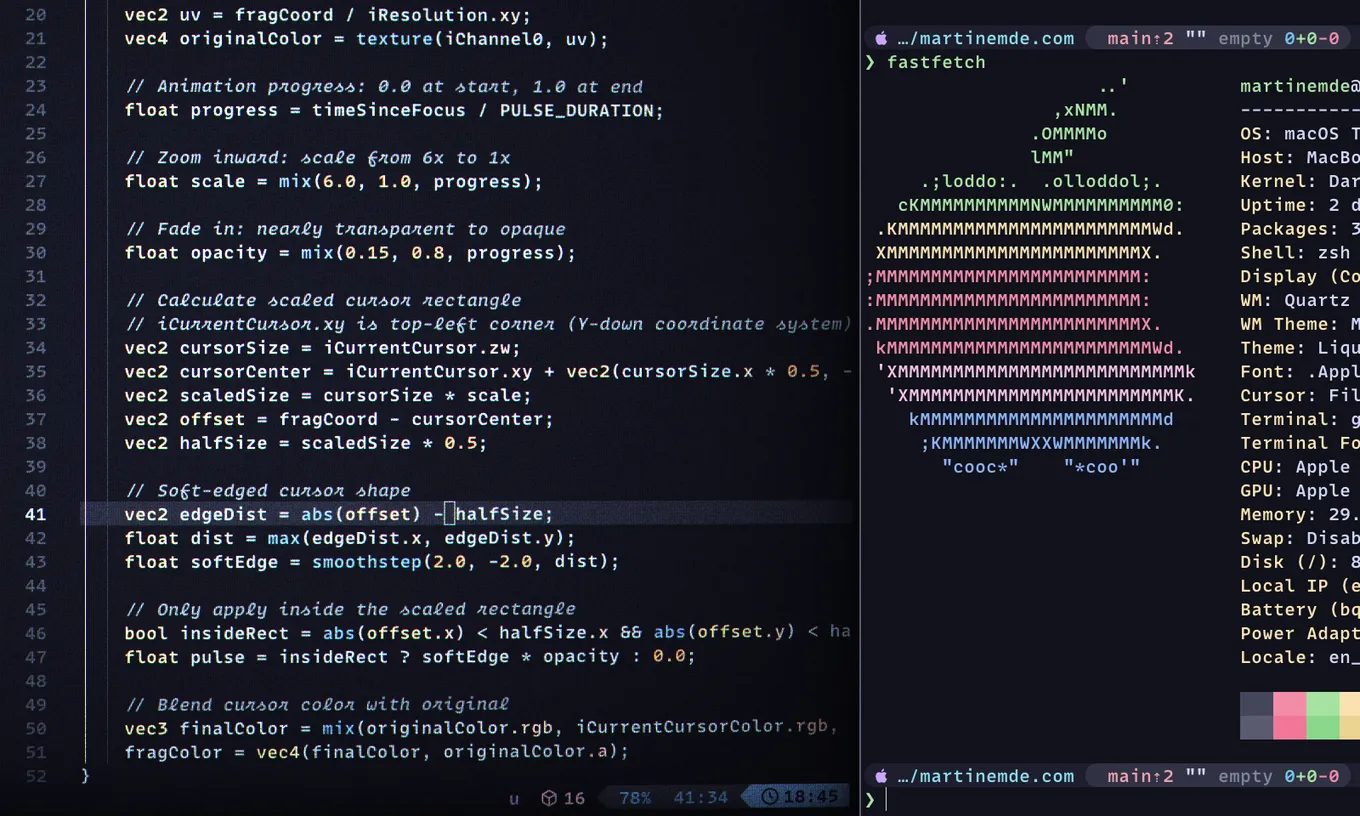
Here’s an example of how to use iTimeFocus to create a resume animation.

const float PULSE_DURATION = 0.15;  // Animation duration in seconds

void mainImage(out vec4 fragColor, in vec2 fragCoord) {
    vec2 uv = fragCoord / iResolution.xy;

    // Quick exit: only run during active focus animation
    float timeSinceFocus = iTime - iTimeFocus;
    if (iFocus == 0 || timeSinceFocus < 0.0 || timeSinceFocus > PULSE_DURATION) {
        fragColor = texture(iChannel0, uv);
        return;
    }

    // Render focus resume animation...
}

In this example, the shader checks how much time has passed since the surface received focus. If the surface is blurred, or if the focus animation duration has passed, the shader exits early to save resources.

You can see and install my focus-cursor shader for a complete example.

Rendering shaders on blurred surfaces

Ghostty shaders mostly don’t receive frames when blurred. This is for performance reasons and can be disabled with the custom-shader-animation=always config option.

However, it’s inconsistent. Sometimes defocused surfaces get frames when a mod key is press (like command or alt) or when the mouse moves over a link. With iFocus you can intentionally filter these frames out to avoid ugly stutters.

So far it seems blurred surfaces reliably receive at least one defocused frame to render the defocused state. While you can’t ensure that an animation could complete on blur (without custom-shader-animation=always), you can at least ensure that the defocused state is rendered once.

Therefore, I would suggest that all shaders should include this gating if statement unless they are intended to run always. It improves performance and polish on both focused state cursor animations and blurred state rendering.

Installing Ghostty prerelease

Again, if you want to use these shaders, you’ll need to install the prerelease version of Ghostty. It might be glitchy (I immediately submitted another bug fix after this feature because the dev build had a problem)

Martin Emde

Friday, January 2, 2026

martinemde.com/2026/01 © 2025 Martin Emde v2026.7_