Ghostty Focus and Blur Shaders
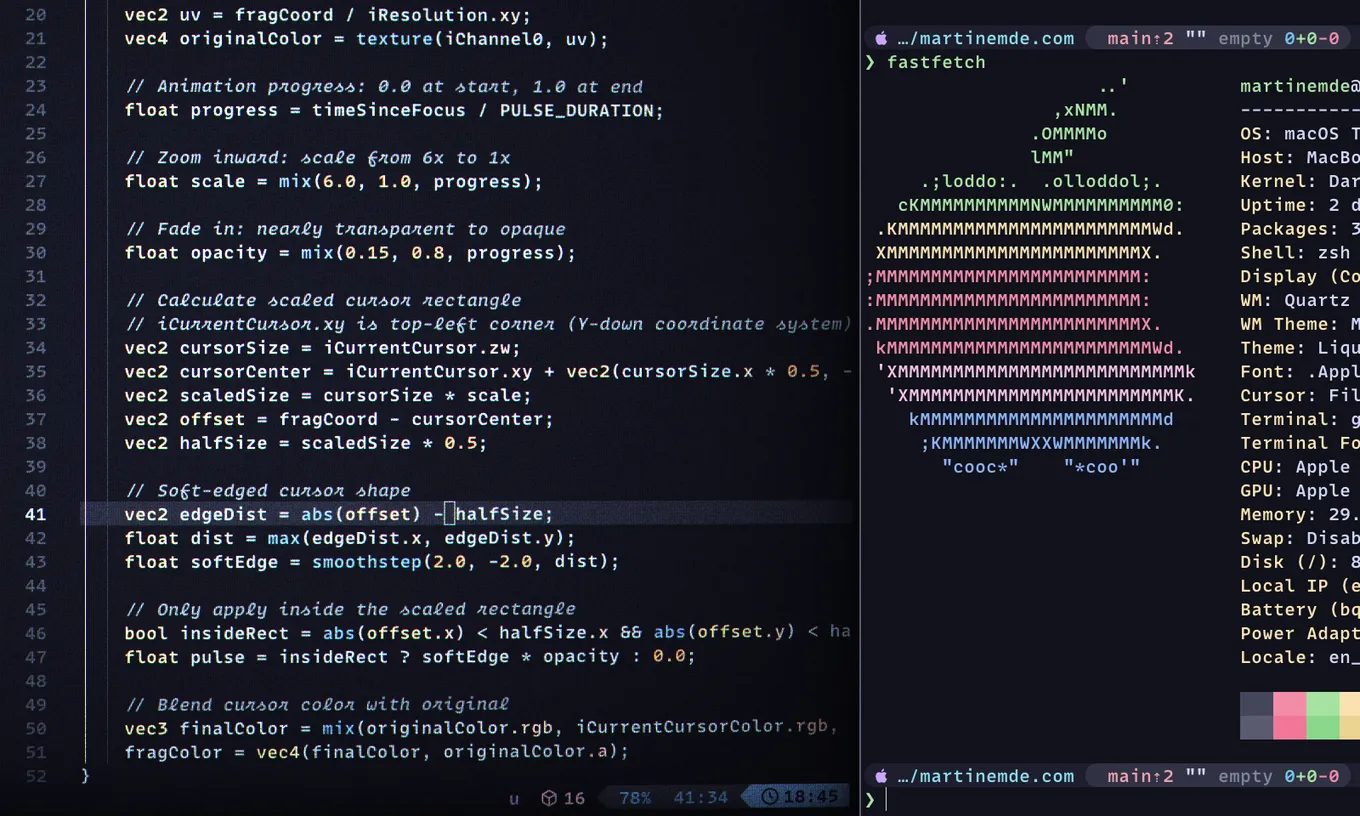
What if you could have that sick Ghostty CRT effect but only on unfocused windows, or a rad flaming cursor highlight but only once when you focused the window?
Introducing the iFocus and iTimeFocus uniforms
My recent contribution to Ghostty enables new focus-based shaders.
You can use these new input variables, iFocus and iTimeFocus, known as “uniforms” in Shadertoy GLSL, to allow shaders to react to focus and blur events.
Note: Until the next Ghostty release, you’ll need to install a recent Ghostty prerelease version to try this out.
Example: CRT Shader on Blur
Here’s the shader I use in Ghostty for unfocused surfaces.
Try clicking into and then outside of the “terminal” (yes it’s upside down). You should see a CRT-style effect that clears when you focus the terminal.
Loading shader...
Here I’m emulating Ghostty’s iFocus uniform to apply a CRT shader only when the canvas is unfocused.
It may not render in every browser.
Try it directly on my site with a modern browser or zoom in really close on your phone.
Example: Focus Animations
Here we emulate the iTimeFocus and iFocus uniforms to create a cursor highlight effect.
Click into the “terminal” and a cursor focus zoom effect triggers. Click around more, the effect only plays once. Defocus the “terminal” then focus it again and you’ll replay the focus animation.
Loading shader...
If you’d like to play with these shaders more, check out my Ghosty Shaders demo page.
Toggle between the shaders using the menu button in the top-left of the demo canvas, or look at the debug overlay (bottom right) for uniform details.
How it works: Focus/Blur Effects
The iFocus uniform is an int set to either 0 (blurred) or 1 (focused).
This uniform is useful for controlling whether a shader renders on focused or blurred surfaces (panes or windows).
To save resources, Ghostty shaders do not run on every frame for unfocused surface. This is generally a good thing and saves resources, except sometimes unfocused surfaces receive frames anyway. This can cause stutters and skips in a paused animation or cursor effect on blurred surfaces.
With iFocus we can intentionally apply blurred styles to unfocused surfaces or run shaders only on focused frames.
This fixes the stutters and skips by allowing the shader to ignoring these deceptive frames.
Example Usage
The following if statement can be added to any shader to make it render only when blurred. You can
check if (iFocus == 1) to run something only when focused instead.
void mainImage(out vec4 fragColor, in vec2 fragCoord) {
    vec2 uv = fragCoord.xy / iResolution.xy;

    // Early exit when focused
    if (iFocus == 0) {
        // Render normal texture when
        fragColor = texture(iChannel0, uv);
        return;
    }

    // The rest of the shader goes here...
}
This example disables all shader effects when the surface is focused, allowing unfocused states such as CRT scanlines, vignettes, shadows, or faded colors that render only on the blurred surfaces.
On the other hand, if you invert the logic you can run something only when the surface is focused, which I have used to make my cursor effects only appear on focused surfaces.
Focus Resume Animations
The iTimeFocus uniform is a float, set to the iTime when the surface last received focus.
We can use this to render effects that need to animate when the surface is focused.
Here’s an example of how to use iTimeFocus to create a resume animation.
const float PULSE_DURATION = 0.15;  // Animation duration in seconds

void mainImage(out vec4 fragColor, in vec2 fragCoord) {
    vec2 uv = fragCoord / iResolution.xy;

    // Quick exit: only run during active focus animation
    float timeSinceFocus = iTime - iTimeFocus;
    if (iFocus == 0 || timeSinceFocus < 0.0 || timeSinceFocus > PULSE_DURATION) {
        fragColor = texture(iChannel0, uv);
        return;
    }

    // Render focus resume animation...
}
In this example, the shader checks how much time has passed since the surface received focus. If the surface is blurred, or if the focus animation duration has passed, the shader exits early to save resources.
You can see and install my focus-cursor shader for a complete example.
Rendering shaders on blurred surfaces
Ghostty shaders mostly don’t receive frames when blurred.
This is for performance reasons and can be disabled with the custom-shader-animation=always config option.
However, it’s inconsistent. Sometimes defocused surfaces get frames when a mod key is press (like
command or alt) or when the mouse moves over a link.
With iFocus you can intentionally filter these frames out to avoid ugly stutters.
So far it seems blurred surfaces reliably receive at least one defocused frame to render the defocused state.
While you can’t ensure that an animation could complete on blur (without custom-shader-animation=always), you can at least ensure that the defocused state is rendered once.
Therefore, I would suggest that all shaders should include this gating if statement unless they are intended to run always.
It improves performance and polish on both focused state cursor animations and blurred state rendering.
Installing Ghostty prerelease
Again, if you want to use these shaders, you’ll need to install the prerelease version of Ghostty. It might be glitchy (I immediately submitted another bug fix after this feature because the dev build had a problem)